
Pickleball coaching, built into your club.
The manager appoints coaches from among the members. Each coach has a profile, opens their slots and runs their recurring lessons; members book from the app.
- A profile viewed by the club's members
- Slots opened by the coach or by the club
- Booking confirmed straight away, reminders 24 h and 2 h before
Is your club already on PickleDeck? Join it with your account: the manager appoints you as a coach from the club console.

01 · Coach profile
A profile every member can look at.
The manager appoints the coach from among the club's members. The profile brings together a presentation, specialities, an indicative hourly rate and the number of available slots. Members find it under “Lessons”, in the club's space.
Visible to the club's members, in the app
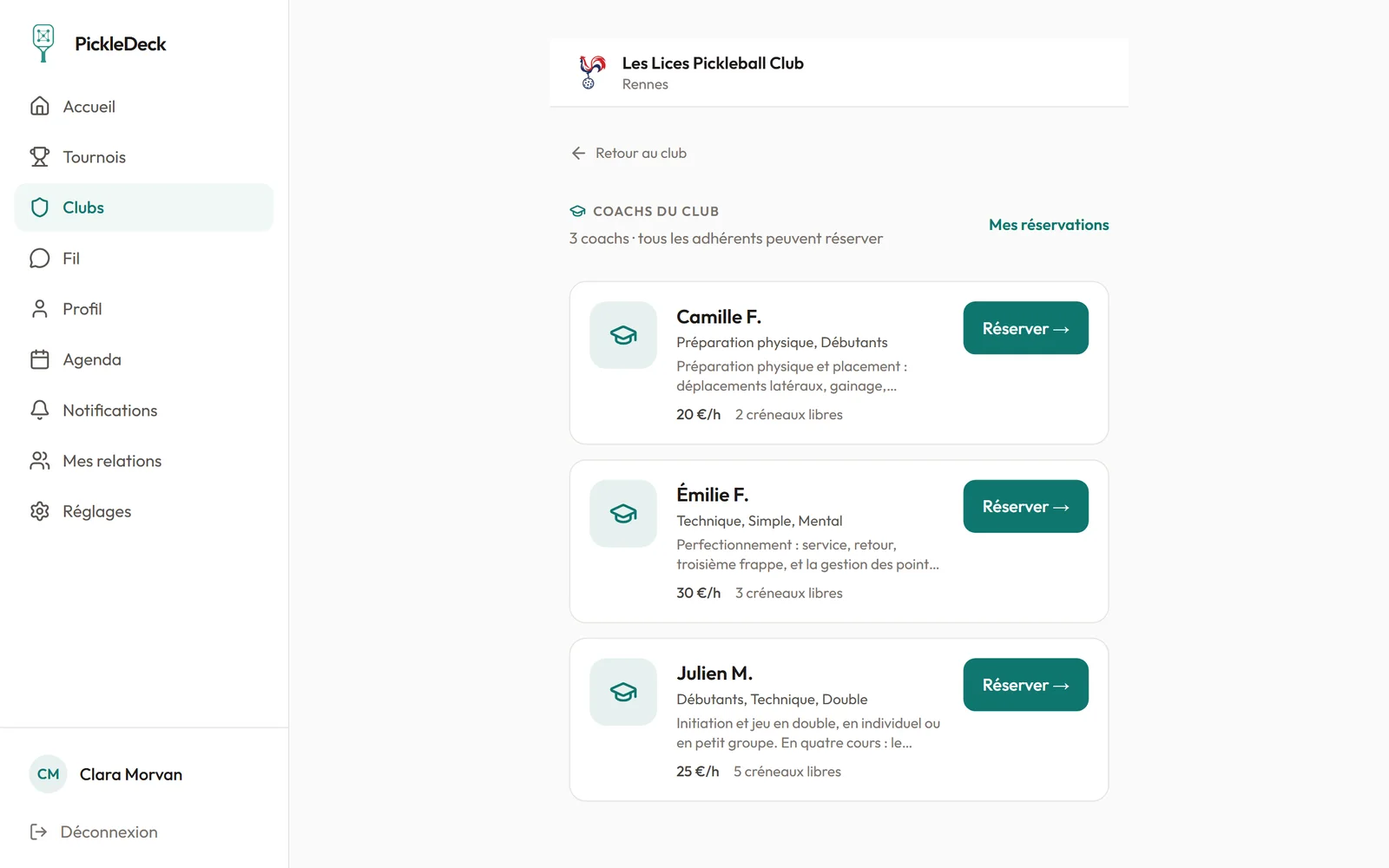
Included in this section
- A presentation in the coach's own words, up to 1,000 characters
- Six specialities: technique, mental game, doubles, singles, fitness, beginners
- Indicative hourly rate, shown again at the time of booking
- Number of available slots shown on the profile
- Profile editable by the coach and by the manager
- A coach can work in several clubs, with a profile in each
- Appointment and removal by the manager
02 · Slots and recurring lessons
Your slots, opened by you or by the club.
A slot has its date, time, length and place, and a single member books it. The coach opens their own from “My coaching”; the club can open them on the coach's behalf from the console. Recurring lessons are scheduled once and come back until the chosen date.
A recurring lesson set up once, its dates created automatically
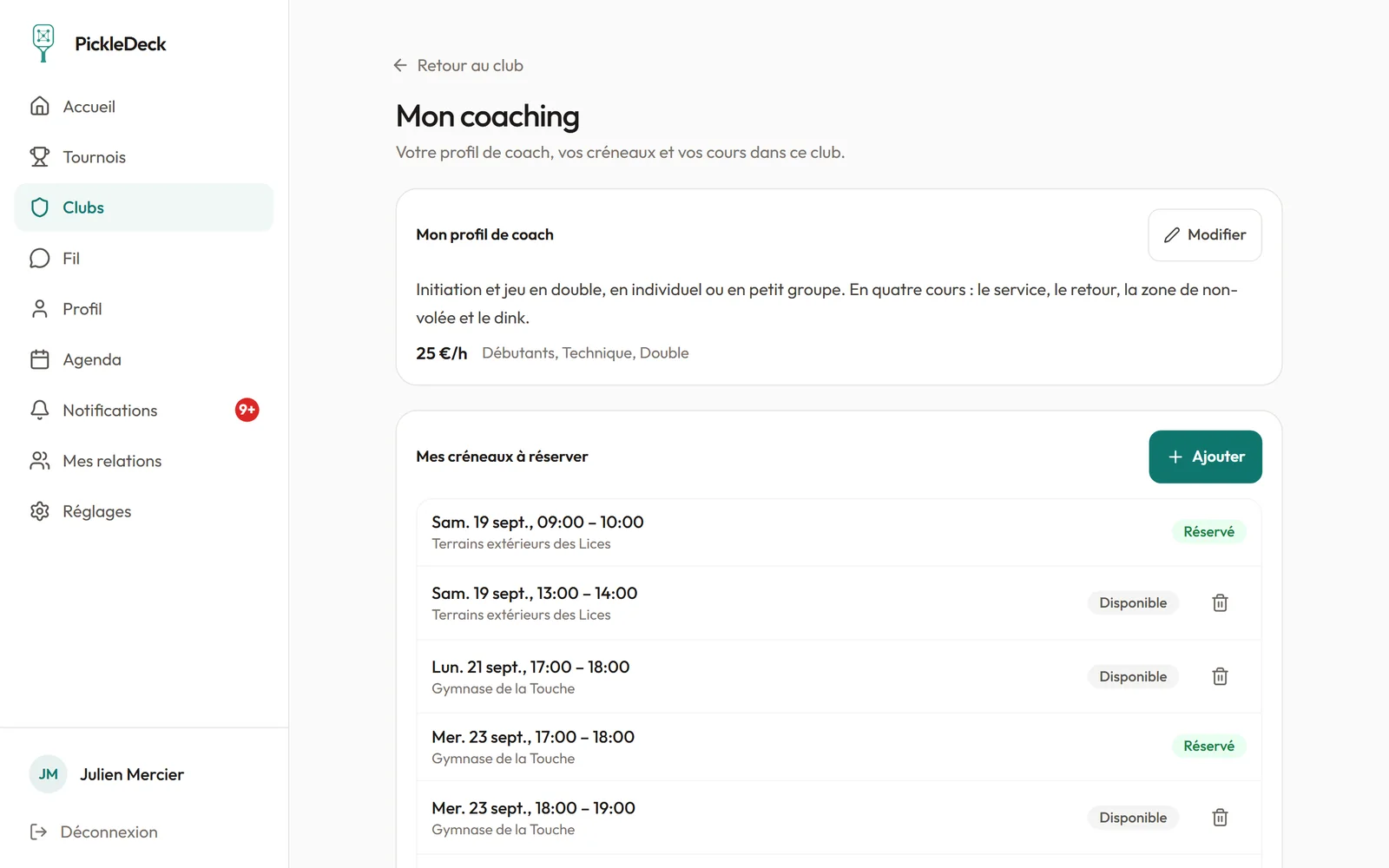
Included in this section
- Slots from 15 minutes to 4 hours, with a place and a note
- From the console: lengths from 30 minutes to 2 hours, and “Open next week” to repeat the same slot
- Two overlapping slots are refused
- A booked slot cannot be withdrawn: the lesson is cancelled and the student is notified
- Recurring lessons every day, every week or every month, until the chosen date
- Number of places per lesson, and a group of members signed up automatically for every date
- A series can be paused by the manager, for up to three months
- New lessons announced to the club's members by notification
03 · Booking
The member books, the lesson is confirmed.
On the coach's profile, the member picks an available slot, notes their goals if they wish, then confirms. The booking is secured straight away: the coach receives a notification and an email, the student a confirmation email. Payment is made directly between the coach and the member; the app collects nothing.
Indicative rate shown, payment made directly between the coach and the member
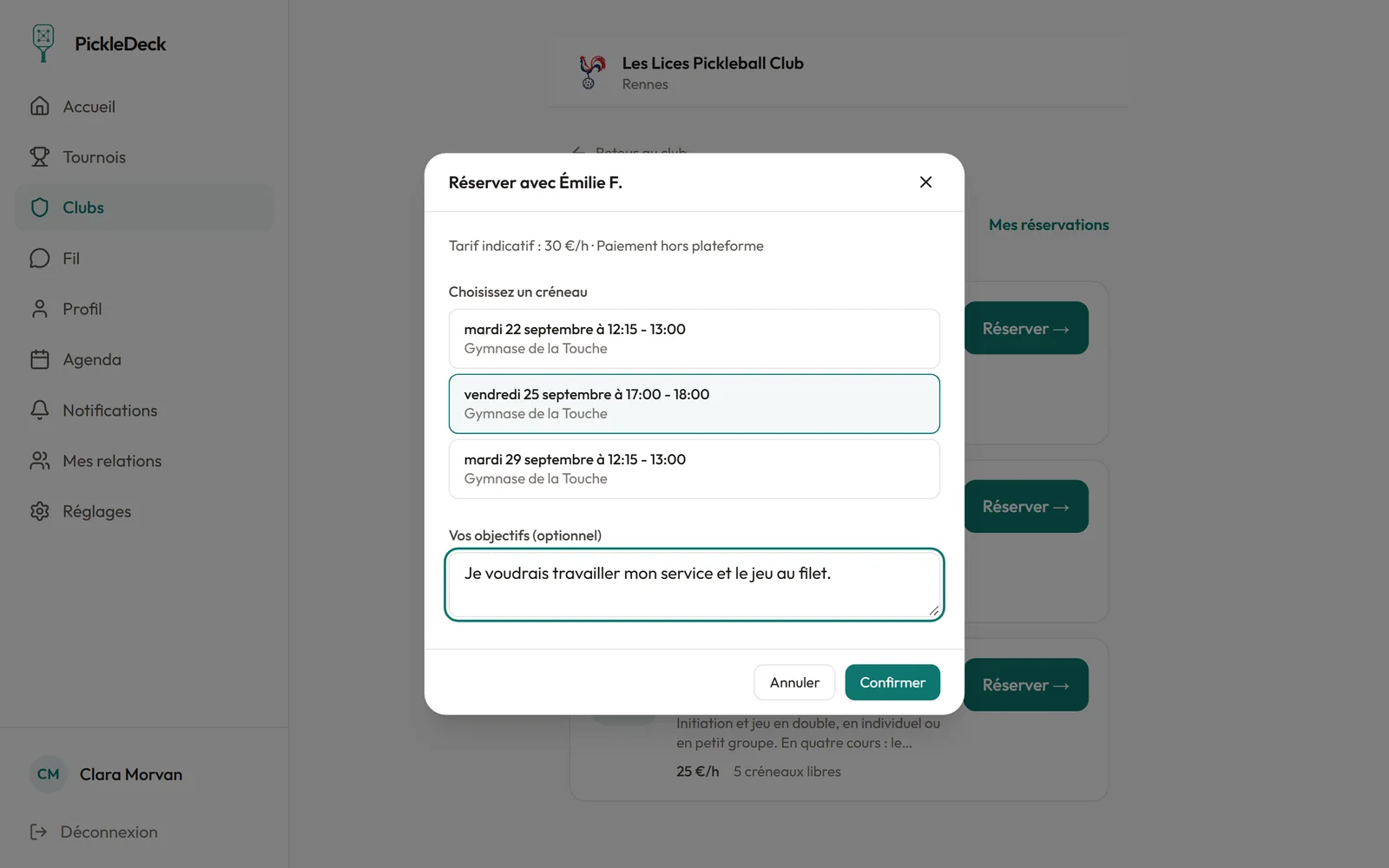
Included in this section
- Three steps: Book, choose the slot, Confirm
- Open to all the club's members
- The student's goals passed on to the coach
- Confirmation email to the student and to the coach
- Reminders 24 h and 2 h before, to the student and to the coach
- My bookings: upcoming lessons and past lessons
- Cancellation by the student or by the coach before the lesson starts, the other is notified
- After the lesson: “Lesson given” or “Student absent”
- Lessons are added to the student's calendar and to the coach's
04 · Club console
The club appoints its coaches, with nothing to switch on.
The Coaches tab is part of every club's console, next to Members and Groups. There, the manager appoints a coach from among the members, corrects their profile, manages their slots or removes them. The coach finds their slots, bookings and recurring lessons in “My coaching”, from the club's page in the app.
No module to switch on: the Coaches tab exists in every club
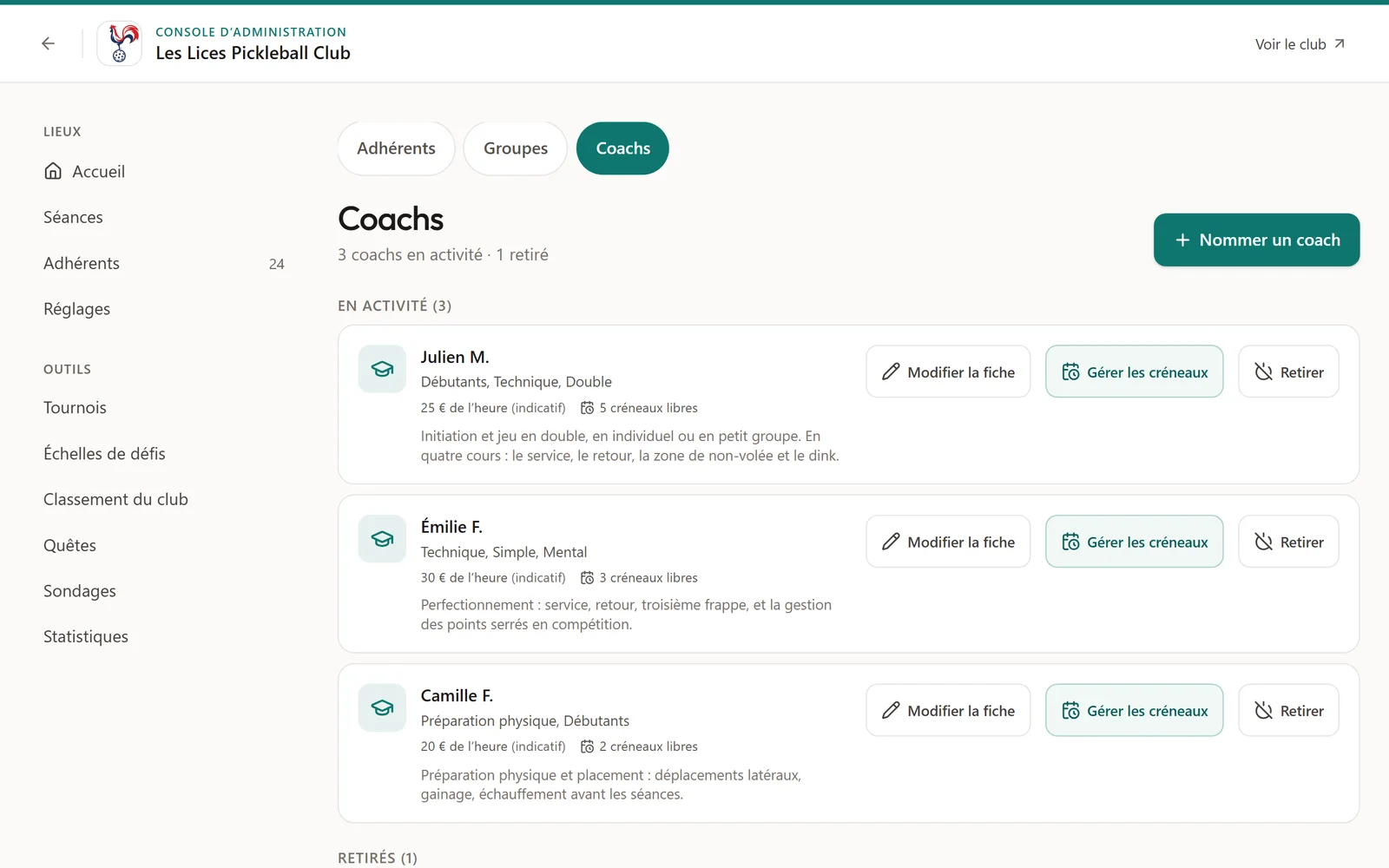
Included in this section
- Coaches tab present in every club, with no setting to switch on
- Appoint a coach: the member, their presentation, their indicative hourly rate, their specialities
- Someone without an account: invite them as a member first, then appoint them
- Manage a coach's slots on their behalf
- Reversible removal: the profile is kept and can be reactivated
- “Coached lesson” session: the manager picks the coach and shows the price of the session
- Members find the coaches under “Lessons” and on the club's home page
In the club space
Coaching is part of the club space.
No separate account: the coach uses their member account. No separate tool: profiles, slots and bookings live in the club console and in the members' app.
What the club gives its coaches
Appoint your coaches, open their slots.
The Coaches tab is included in every PickleDeck club space. As soon as a slot is open, members can book it.